Application Registration & Payer Review
Versions 3.3–3.9 streamline how users register applications and give payer admins richer information when reviewing them. This guide covers the simplified registration form and its real-time validation, plus the new applicant "Additional Details" panel and rejection-remarks requirement in the payer admin review.
Application Registration Flow
The registration experience is simpler across v3.3–v3.9. Sign-up forms now check username and email availability in real time, the application form no longer asks for a version, and the Application ID and Type are set automatically instead of being entered by hand. Re-registering an application that already has an approval is handled gracefully with a dedicated page.
Real-time username & email validation
On the registration forms (developer, payer, provider, agent), username and email availability is checked as the user types.
Validation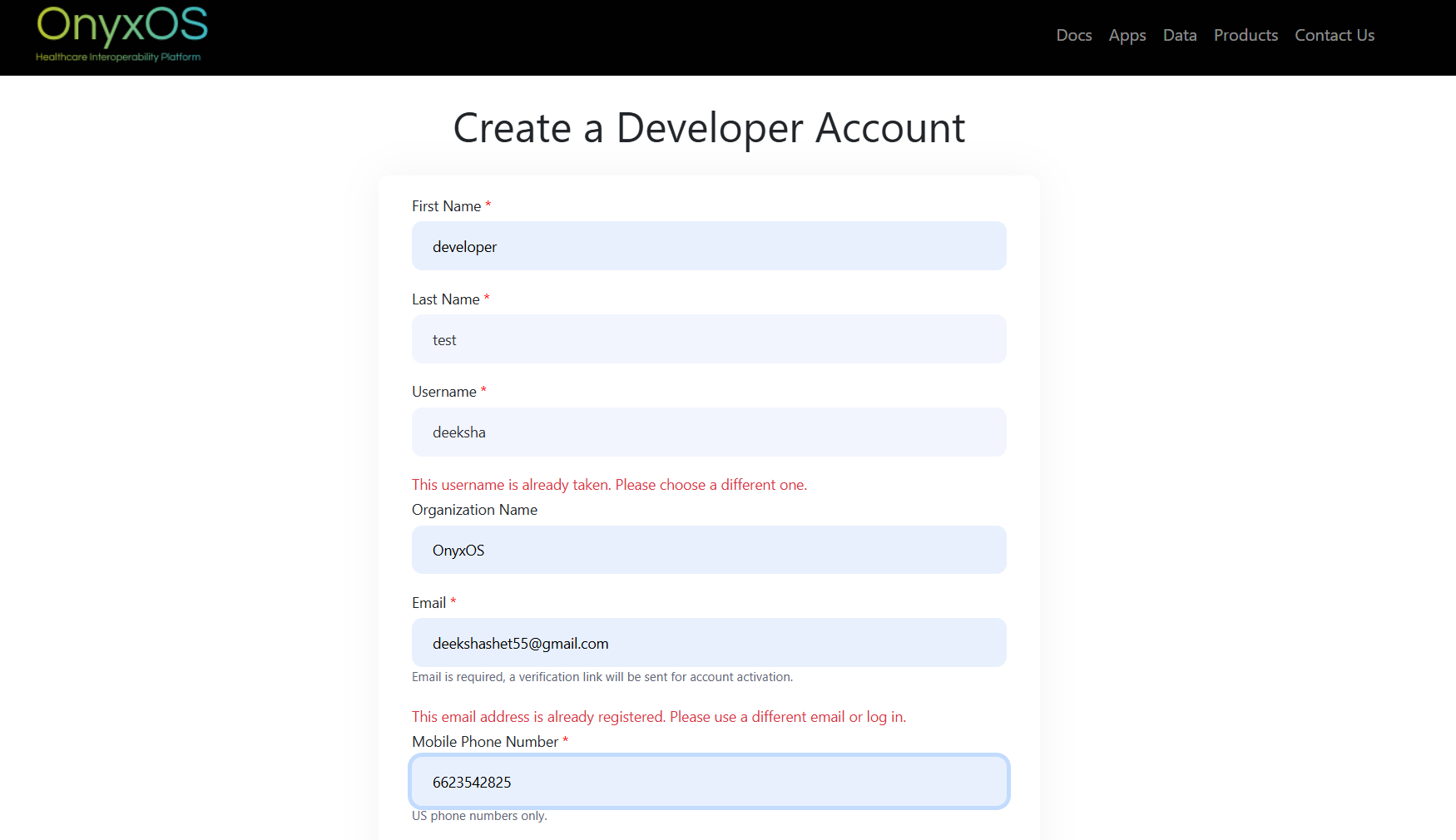
As the user fills in the username and email fields, the form checks availability in the background and shows an inline message directly below the field if the value is already taken or invalid. This happens before submission, so users can correct issues immediately instead of getting an error only after clicking "Create Account".
Simplified application details form
The "Application Version" field has been removed from the registration wizard.
User actionThe application details form no longer includes an "Application Version" field, and the version format validation that came with it is gone. Users fill in the remaining details without having to supply or maintain a version string.
Application ID & Type set automatically
The Application ID and Application Type are no longer entered manually — they are generated/derived and submitted behind the scenes.
Automatic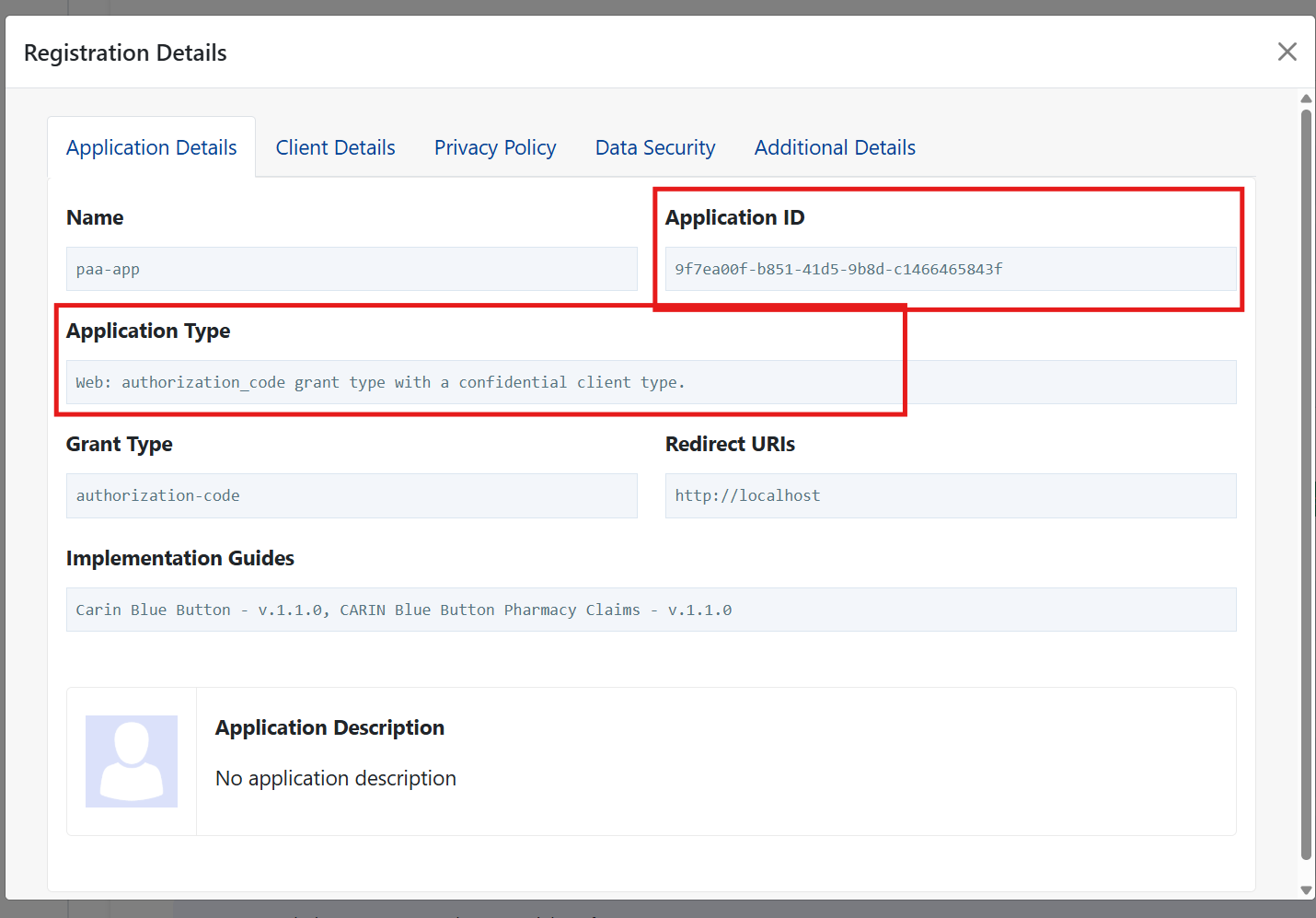
The Application ID (an auto-generated unique identifier) and the Application Type (web or service, based on the application) are no longer shown as editable or read-only boxes in the form. They are set automatically and submitted with the application, so the user has fewer decisions to make and cannot enter an inconsistent value.
Application already registered
If a user re-opens the registration link for an application that already has an approval, a dedicated page explains it instead of creating a duplicate.
Page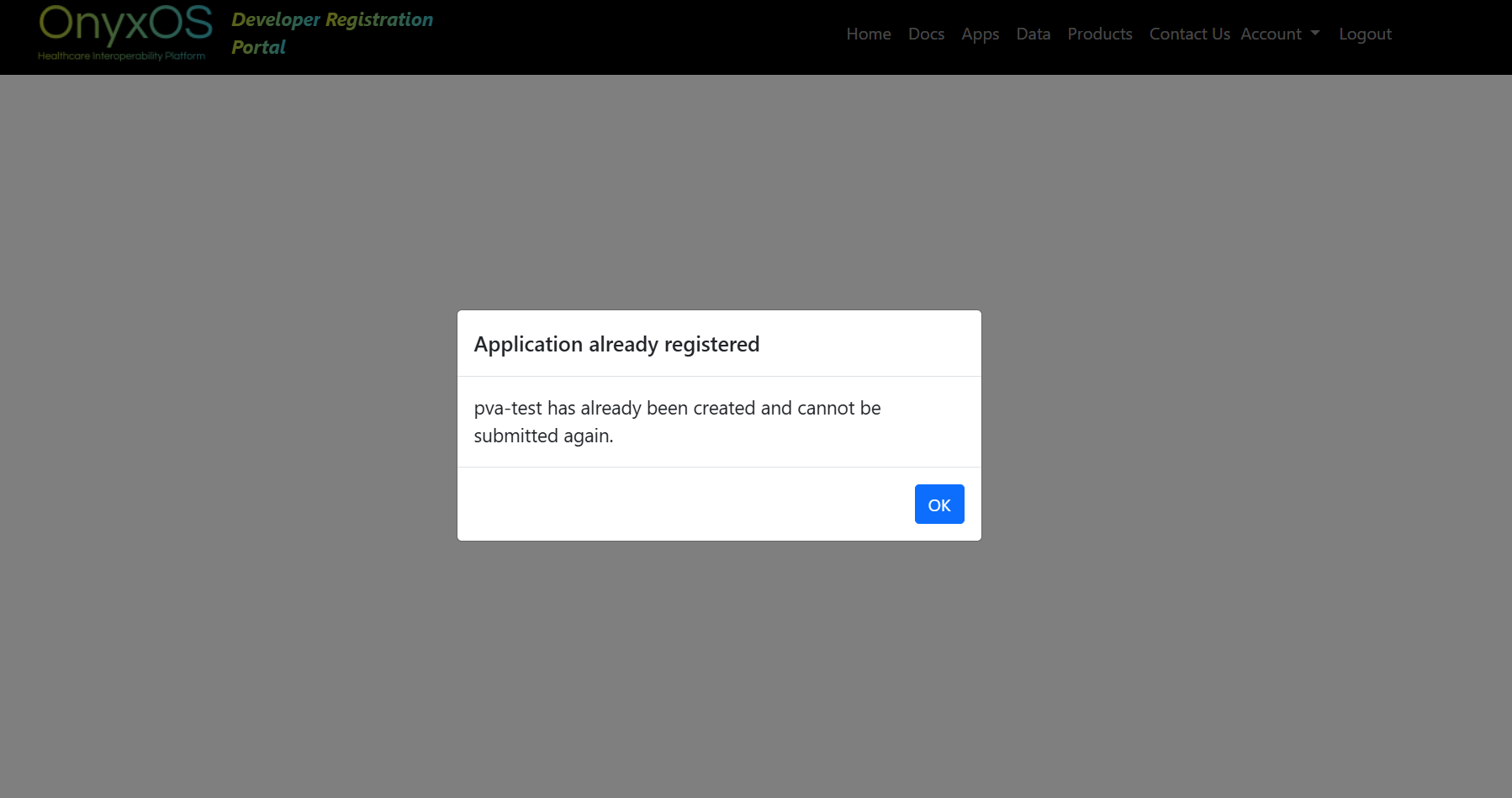
When an application already has a submitted approval and the registration URL is opened again, the portal shows an "Application already registered" page with a link back to the home dashboard, rather than silently creating another approval request or re-notifying approvers.
It prevents duplicate approval requests for the same application and keeps the approver's inbox clean.
For a first-time submission, the request is created and the application moves into the Pending state for payer admin review.
Payer Admin Review Flow
When reviewing a submitted application, a payer admin now sees an "Additional Details" panel with the applicant's identity and organization information — including sensitive identifiers with the TIN masked behind a "Show" toggle. Rejecting an application now requires rejection remarks so the applicant receives a clear reason.
Open a pending application
The payer admin opens an application awaiting review from the Pending tab to see its details.
Page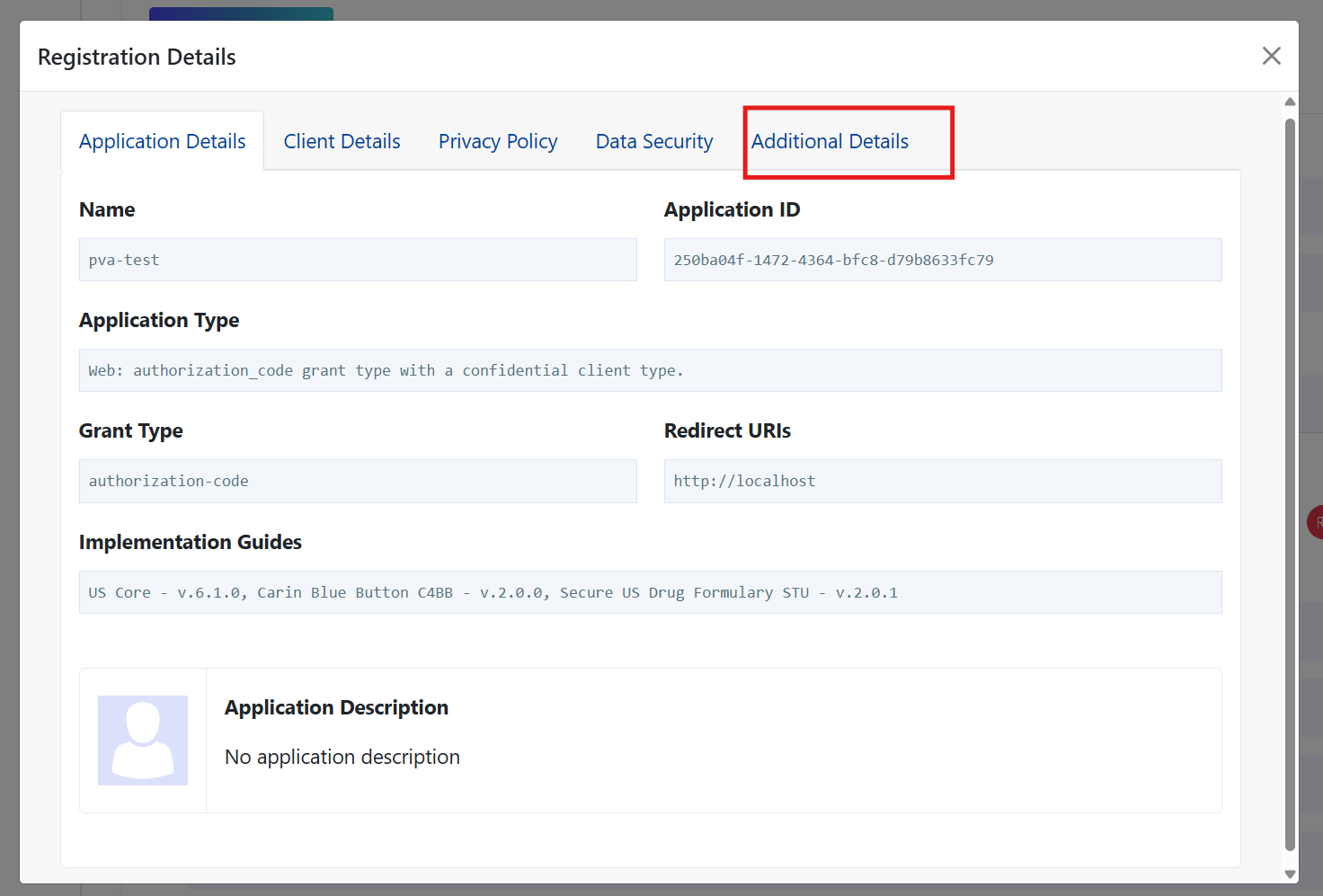
The application details page opens with the usual application information tabs. A new "Additional Details" tab is available for applications the payer admin is authorized to review.
Additional Details panel
A new tab shows the applicant's Name, Email, Organization, and Persona (role).
New panel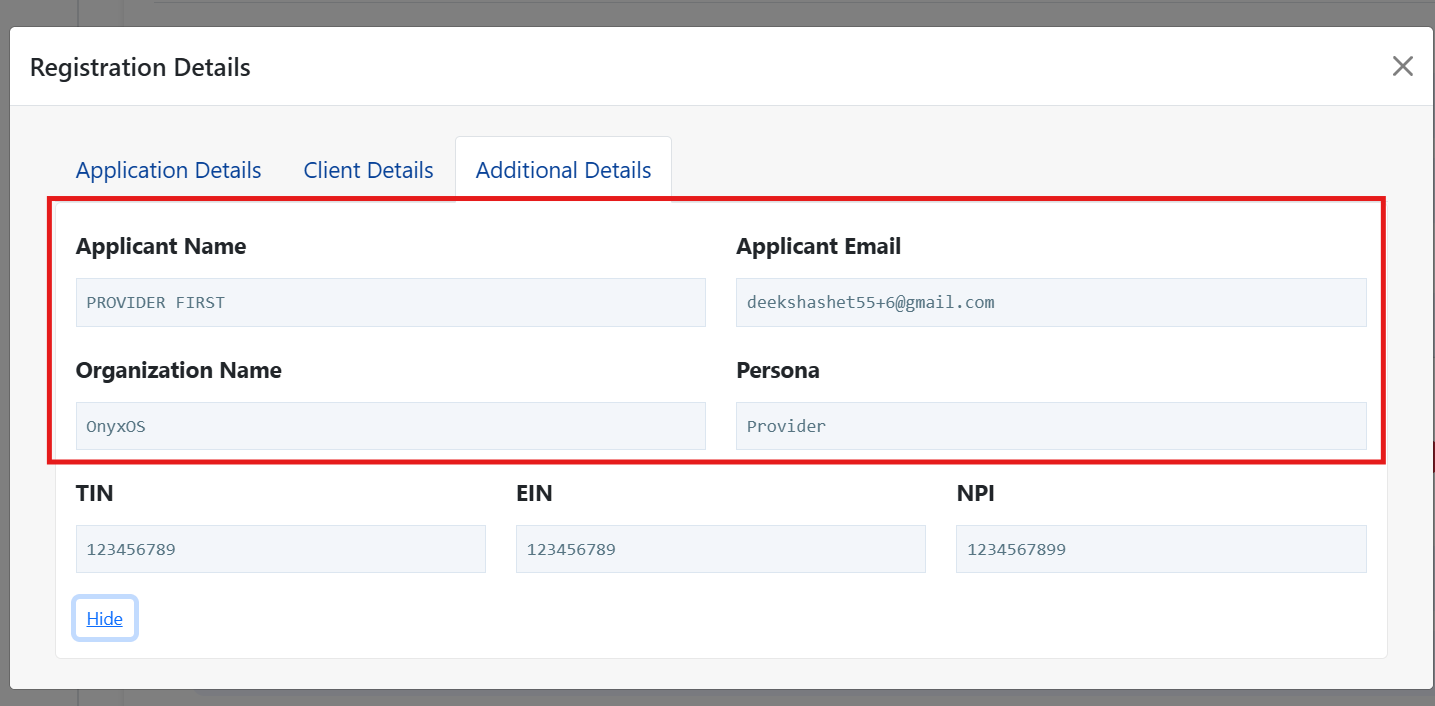
The "Additional Details" tab presents the applicant's Name, Email, Organization Name, and Persona (the role they registered under). This gives the reviewer context about who is requesting access without having to look the applicant up separately.
Sensitive identifiers (TIN / EIN / NPI)
TIN, EIN and NPI are shown when applicable. The TIN is masked by default and revealed with a "Show" toggle.
Protected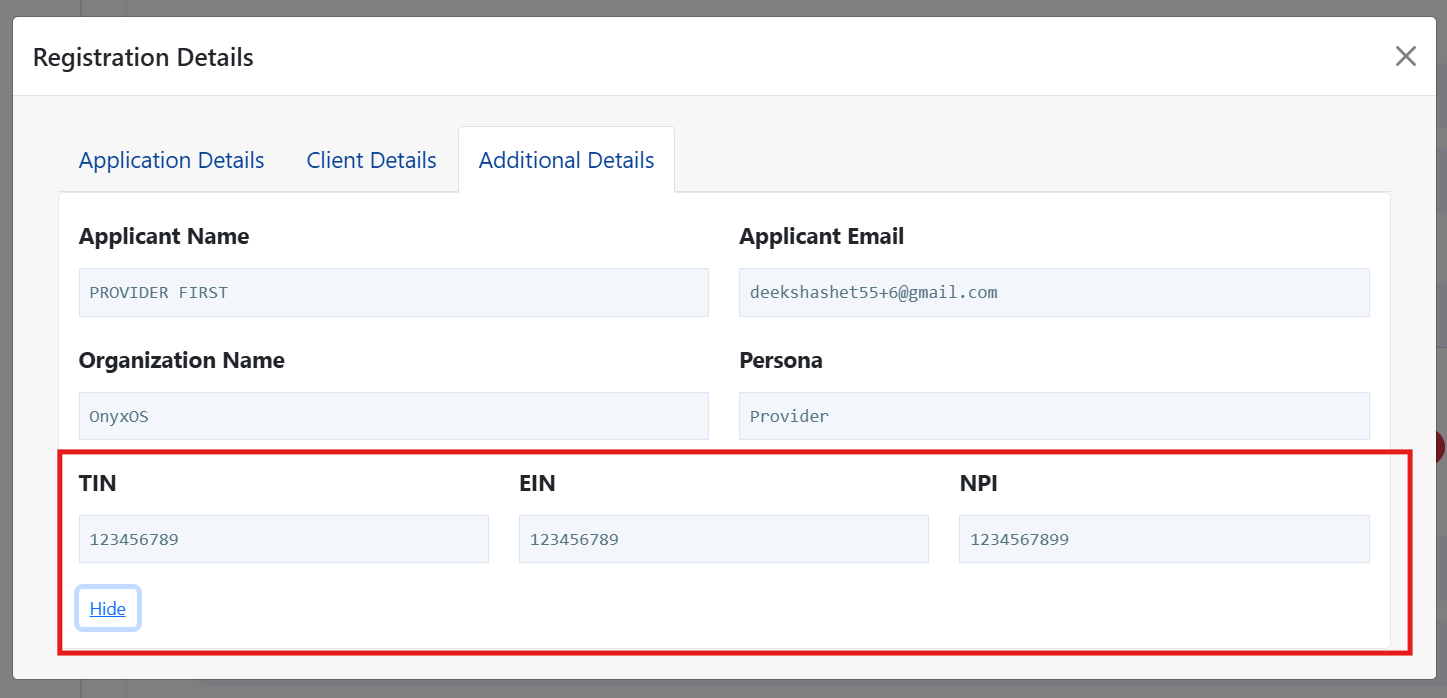
Where applicable, the panel also shows the applicant's TIN, EIN and NPI. The TIN is masked by default (for example showing only the last few digits) with a "Show" button to reveal the full value when needed. These fields only appear for payer admins who are permitted to see them.
Payer admins only see applicant details for applicants within their own organization, so sensitive identifiers are never exposed across organizations.
Rejection now requires remarks
When rejecting an application, the payer admin must enter rejection remarks (meeting a minimum length) before confirming.
Decision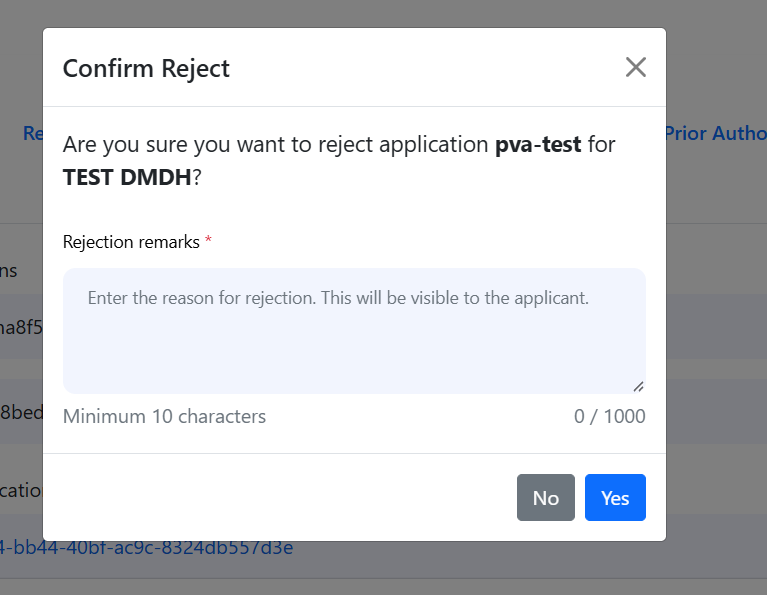
Clicking "Reject" opens a confirmation with a remarks field. The confirmation cannot be completed until remarks are entered and meet the minimum length, so every rejection carries a clear reason that can be communicated back to the applicant.
An inline validation message is shown and the confirmation stays open. The rejection is only recorded once valid remarks are provided.
Approve, reject (with remarks), or revoke — the outcome is recorded and the application moves to the matching tab.
Rejection remarks in the Rejected tab
After a rejection, the remarks are available from the Rejected tab via a "View remarks" button — visible to both the applicant and the payer admin.
Visibility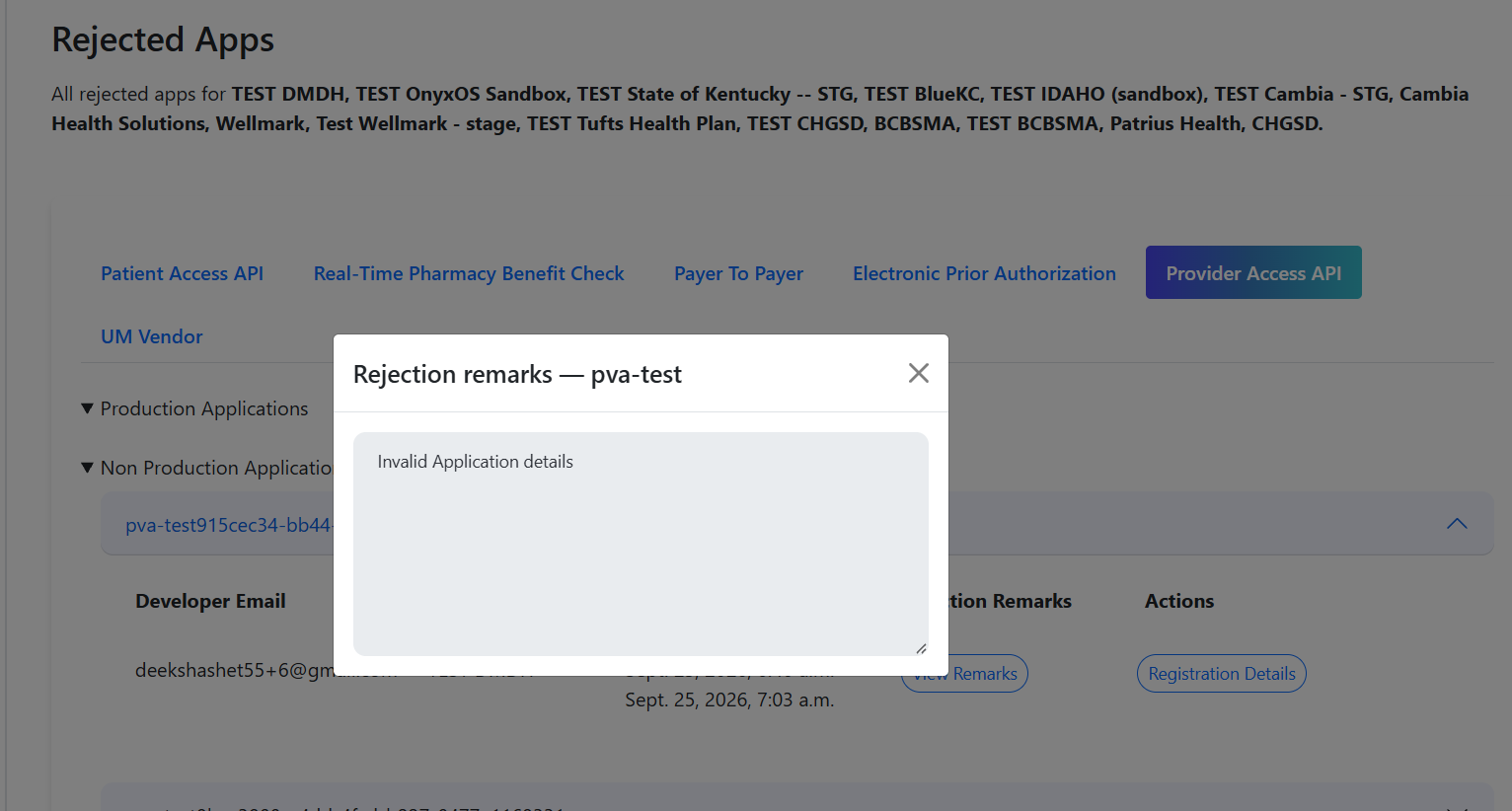
In the Rejected tab, each rejected application shows a "View remarks" button that opens a read-only popup with the rejection reason entered by the payer admin. The applicant (whichever role submitted the application) sees it on their Rejected tab so they know why it was rejected, and the payer admin sees the same remarks on their Rejected tab for reference.