Authenticator App (TOTP) - Complete Flow Guide
TOTP is an opt-in second factor that uses a 6-digit code from Google Authenticator, Authy, or any other TOTP-compatible app. SMS MFA must already be active on the account before TOTP can be enabled. Twilio Verify manages the underlying factor and validates every code we send it; our portal only orchestrates the UI and persists the device link.
The user must already have SMS MFA enabled (a verified phone number + MFA toggled on) before the Authenticator App option appears. If SMS MFA is not active, the TOTP card on the profile shows as locked.
Enrollment Flow (Profile)
Logged-in user enables an authenticator app from the Account Settings page. The portal asks Twilio Verify to create a new TOTP factor, renders the QR code, and locks the device in only after Twilio confirms the very first 6-digit code.
confirmed flag - never the shared secret.
Open Account Settings
User navigates to the profile/account settings page from the top-right menu.
Page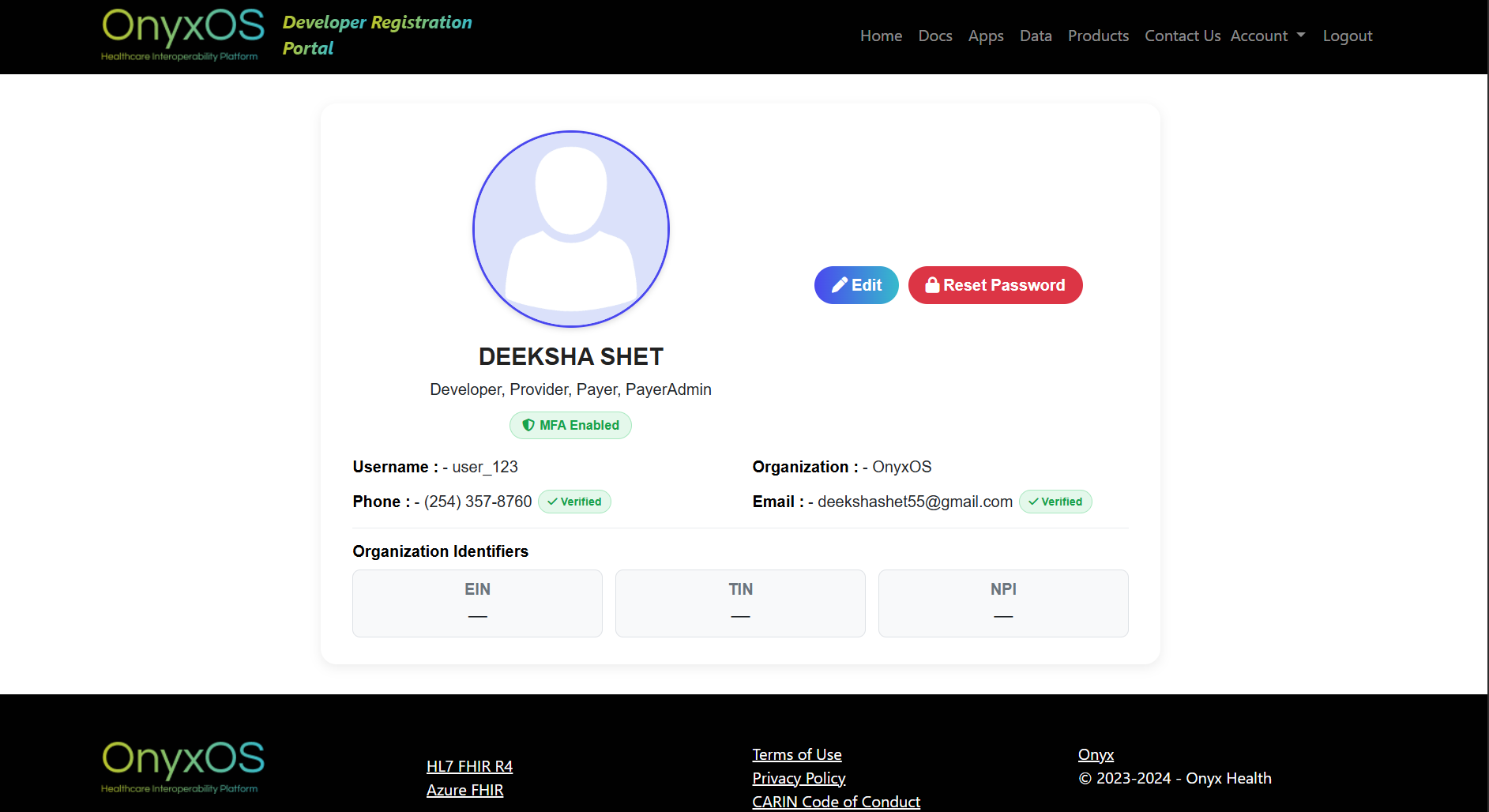
The Authenticator App card sits under the phone number section. If SMS MFA is already active, the card shows a pink "Not set up" pill and a black "Enable →" button. If SMS MFA is not active, the card is rendered in a locked / amber state and the button is disabled.
Click "Enable" - Factor created
Portal POSTs to generate-totp-factor/. Server asks Twilio to create a new TOTP factor for this user.
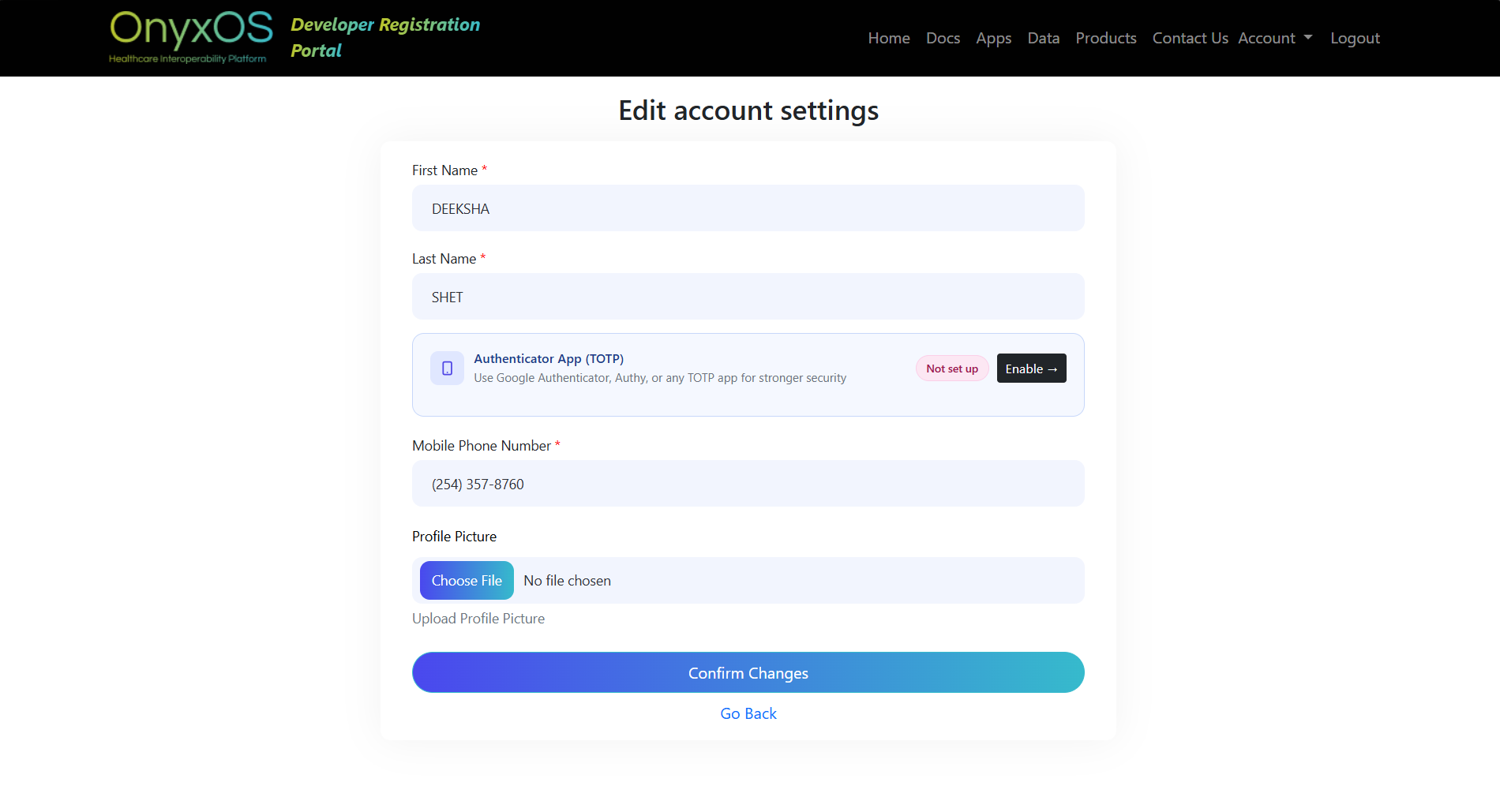
The view initiate_totp_enrollment verifies the user has MFA enabled and that no confirmed TOTP device already exists, then calls OTPDeliveryService.create_totp_factor(). Twilio returns a Factor SID and a binding URI (otpauth://totp/...). The portal rewrites the issuer + label on the URI so the user's app shows "SAFHIR" and their email.
Twilio rotates and validates every code. Our DB only persists the Factor SID + a confirmed=False row until the user proves they scanned the QR.
QR code rendered (30-second window)
The binding URI is rendered client-side as a QR code. A 30-second countdown blurs the QR to limit shoulder-surfing.
User action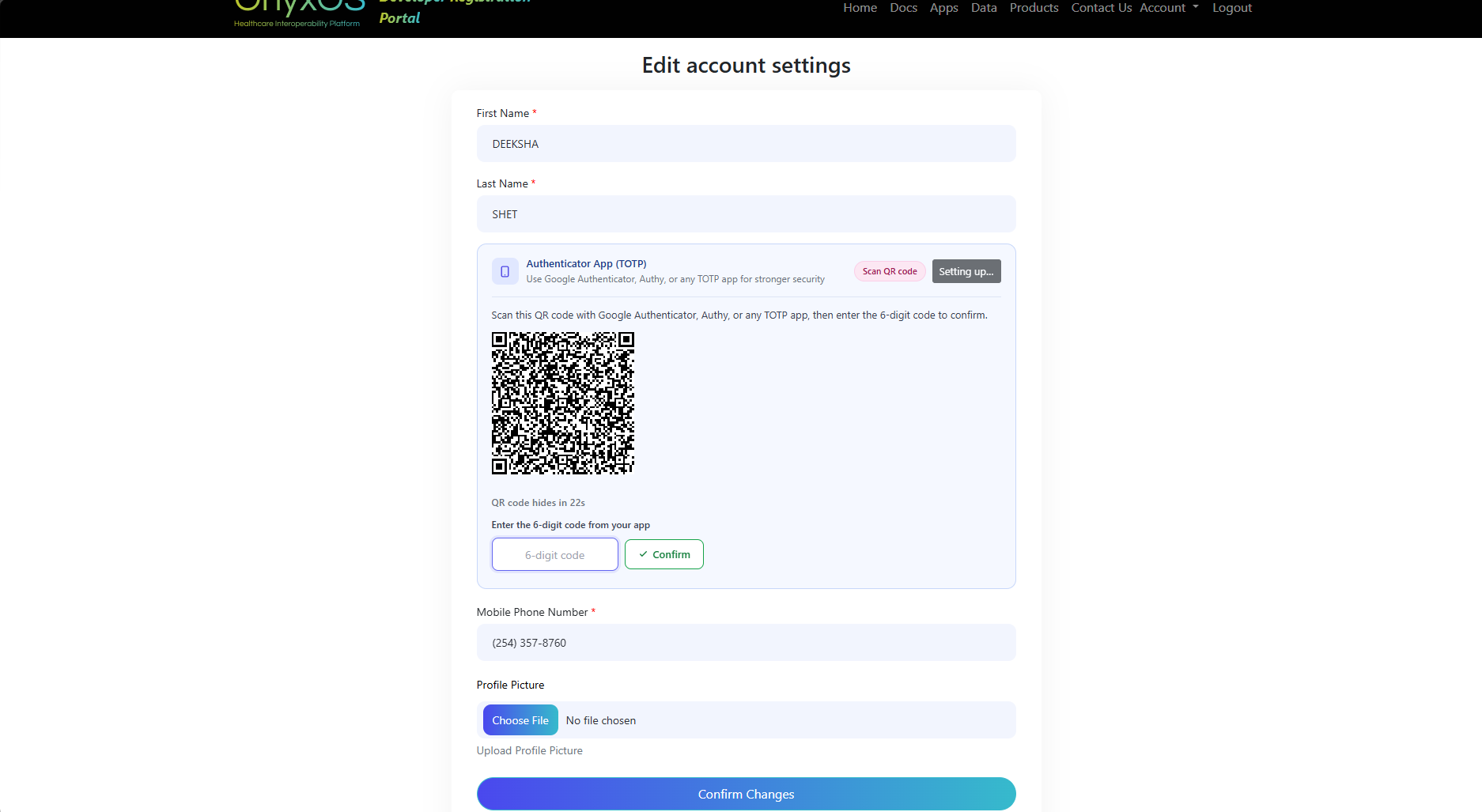
A QR code, the message "QR code hides in 30s", and a 6-digit code field. After 30 seconds the QR is blurred and a "Reveal QR Code" button appears. The user opens Google Authenticator / Authy / Microsoft Authenticator and scans the code.
Enter 6-digit code + Confirm
Portal POSTs to confirm-totp-enrollment/ with the code. Server forwards it to Twilio.
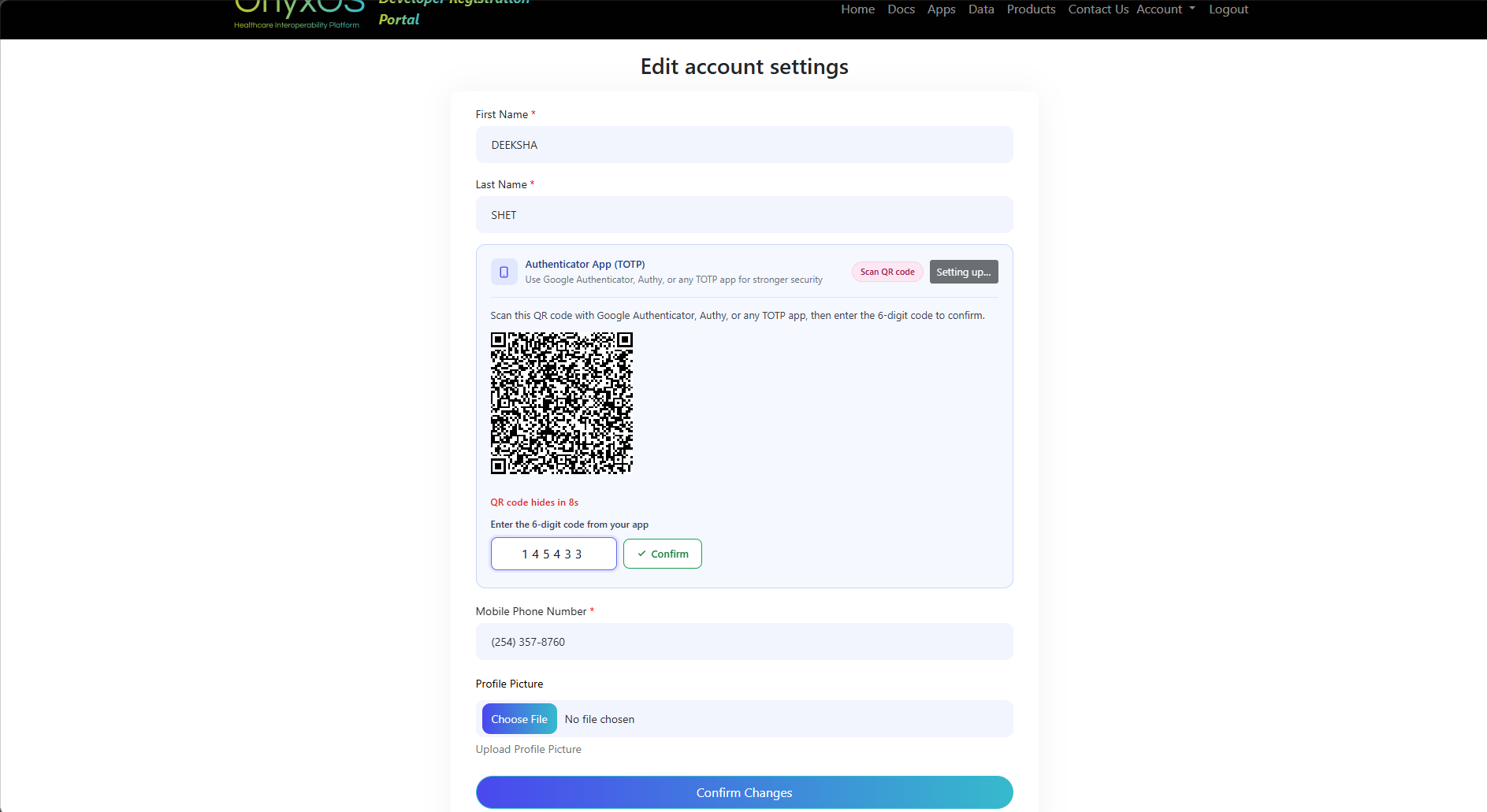
The view validates the input is six digits, reads TOTP_ENROLLMENT_FACTOR_SID from the session, then calls OTPDeliveryService.confirm_totp_enrollment(). Twilio returns status=verified only when the code matches. On success the portal sets confirmed=True on the TOTPDevice row and stamps the session with the TOTP backend so the MFA middleware accepts the user on the very next request.
Server returns 400 with a user-friendly "Invalid code. Please try again." The session factor SID is preserved, so the user can re-enter without restarting.
Card flips to "Active"
The enrollment card is replaced inline with a green "Authenticator App Active" pill plus a red "Remove" button - no page reload required.
Done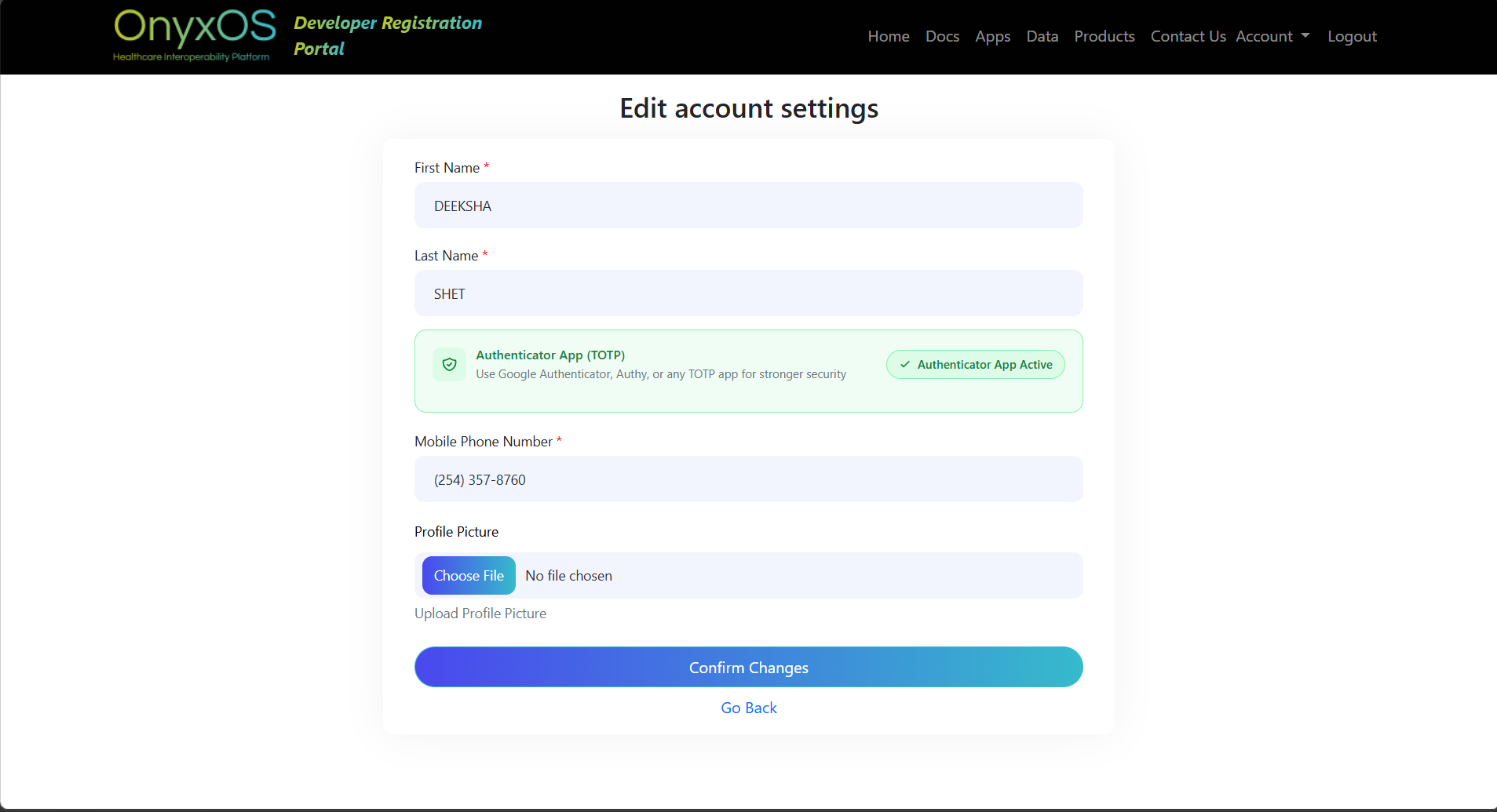
From now on the user can pick TOTP at the login modal. SMS MFA also remains available as a backup.
Login with TOTP
A returning user enters their username + password. If the credentials are valid and the user has a confirmed TOTP device, they can pick "TOTP" at the verification modal instead of waiting for an SMS code.
Username + password
Standard credential check. On success the user enters a pre-auth state - logged in conceptually, but not yet permitted past MFA.
Page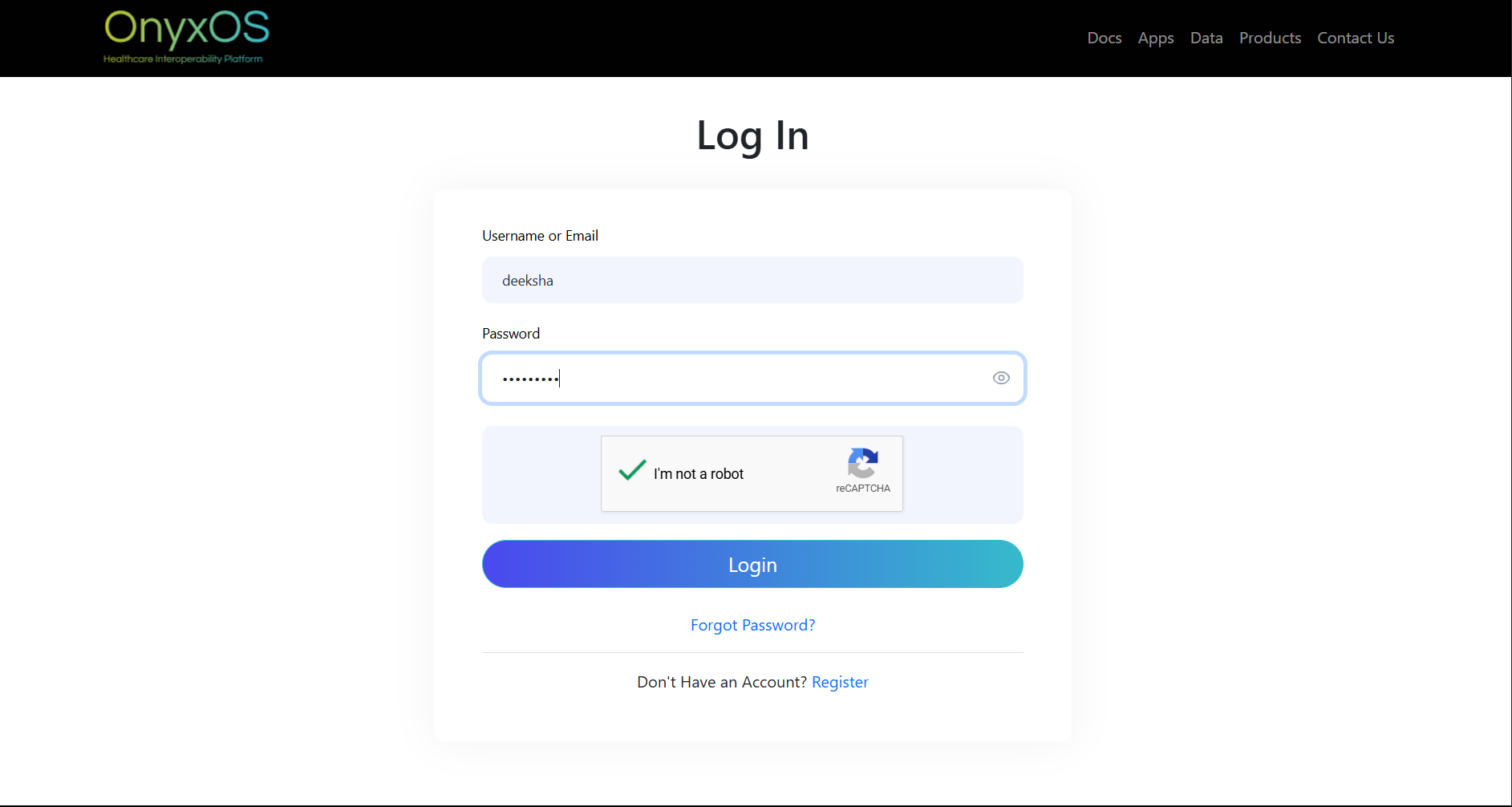
The login view stores the user's id in PRE_AUTH_USER_ID and any post-login redirect in NEXT_AFTER_LOGIN. It also pre-computes has_totp server-side so the TOTP button is rendered enabled only for users with a confirmed device.
Choose verification method
A small modal asks "Choose Verification Method" with SMS / TOTP buttons.
Modal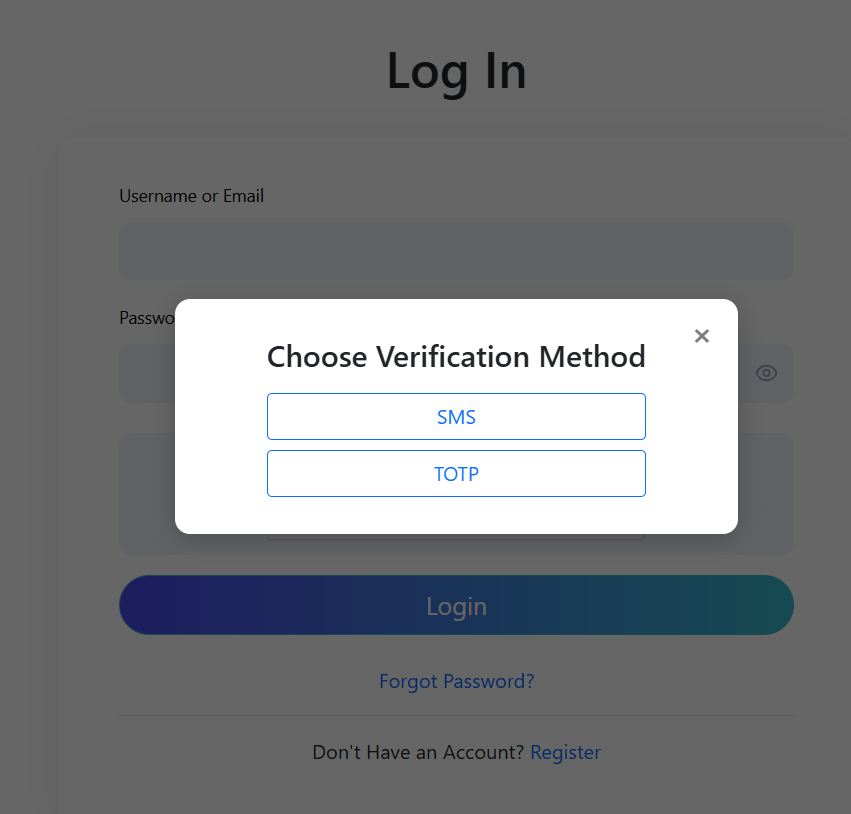
Two buttons. The TOTP button is enabled only because has_totp was true on the server. Selecting TOTP skips the "Send OTP" step entirely - codes come from the user's authenticator app, nothing is sent over SMS.
Enter 6-digit code
Portal POSTs { totp_code } to validate-totp-code/. IP-based rate limiting is applied.
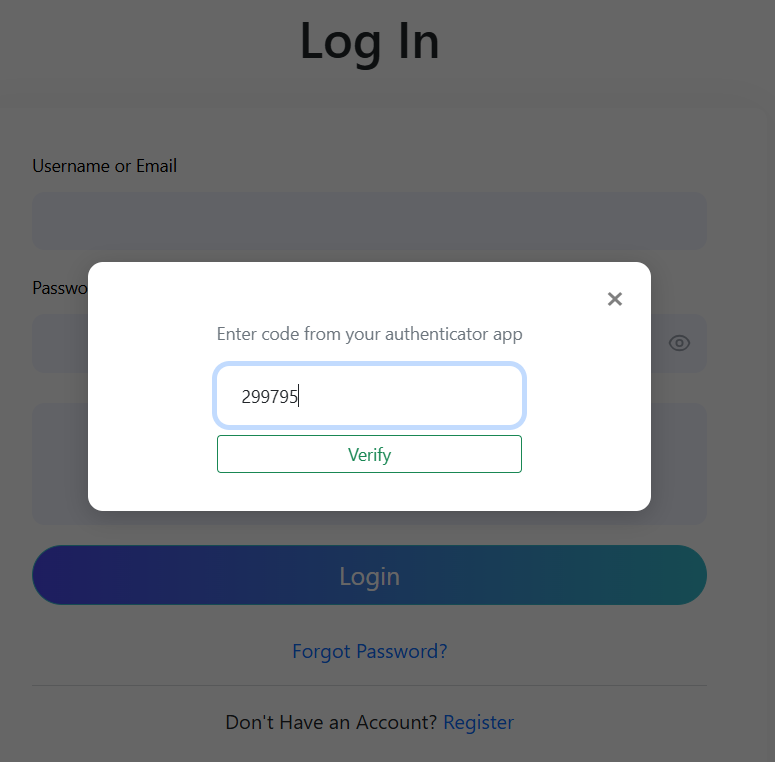
validate_totp_code looks up the user's confirmed TOTPDevice, then calls OTPDeliveryService.verify_totp_challenge(). Twilio creates a Challenge with the code as auth_payload and returns approved or denied.
Login completed
Server calls login(), pops the pre-auth keys and stamps the MFA session with the TOTP backend.
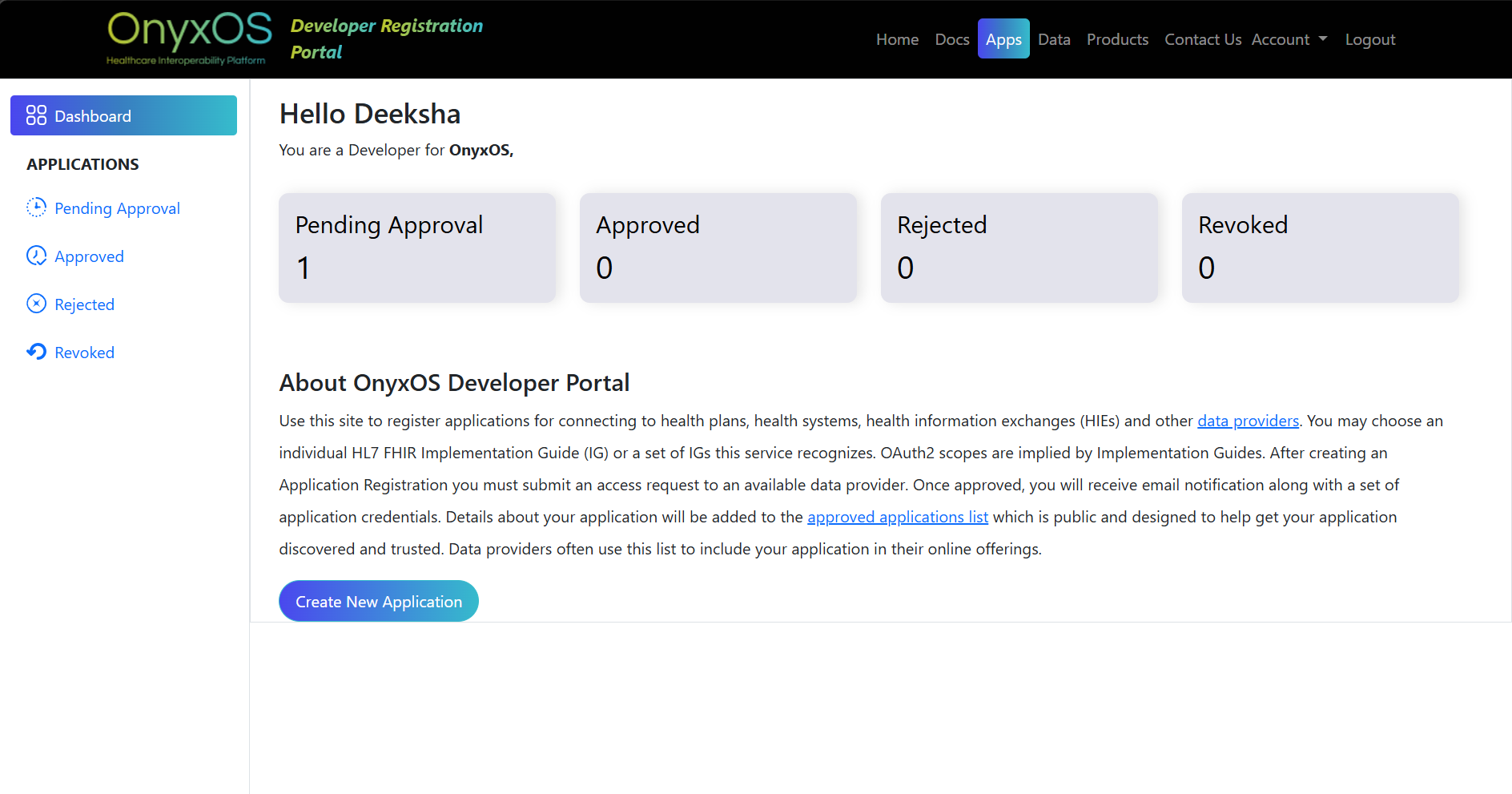
Client receives { success: true, redirect_url } and navigates to the originally requested page (or /). The session now passes the MFA middleware.
Removal Flow (Profile)
User deregisters their authenticator app. The portal asks Twilio to delete the factor, removes the device row locally, and re-stamps the session with the user's SMS device so they keep working without re-login.
Click "Remove"
An inline confirmation prompt appears - no separate modal.
User action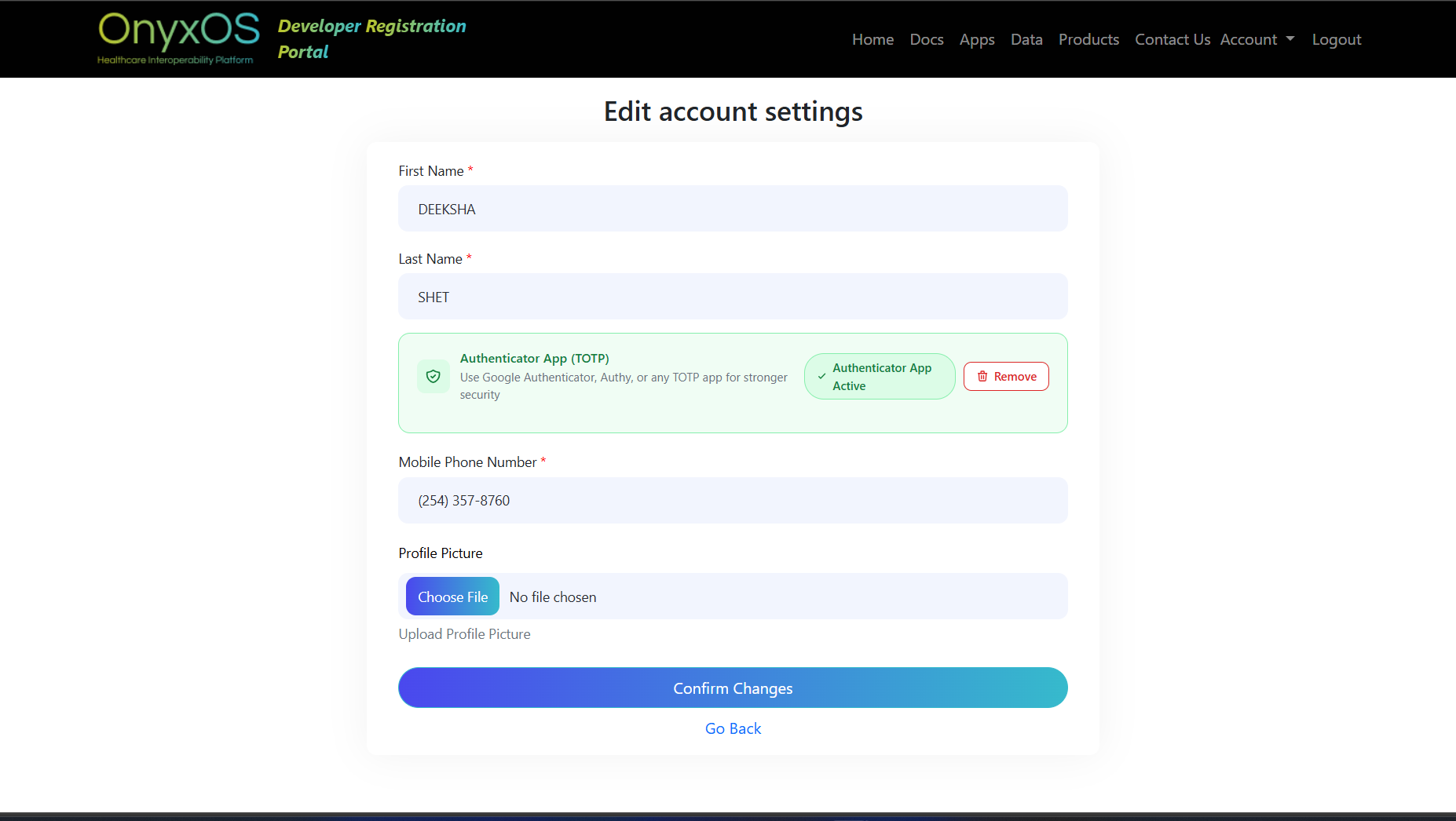
The active green card switches to a red-bordered "Remove authenticator app?" panel with two buttons: "Yes, remove it" and "Cancel". Cancel restores the active state without any server call.
Confirm - call Twilio
POST to remove-totp-device/. Portal calls OTPDeliveryService.delete_totp_factor().
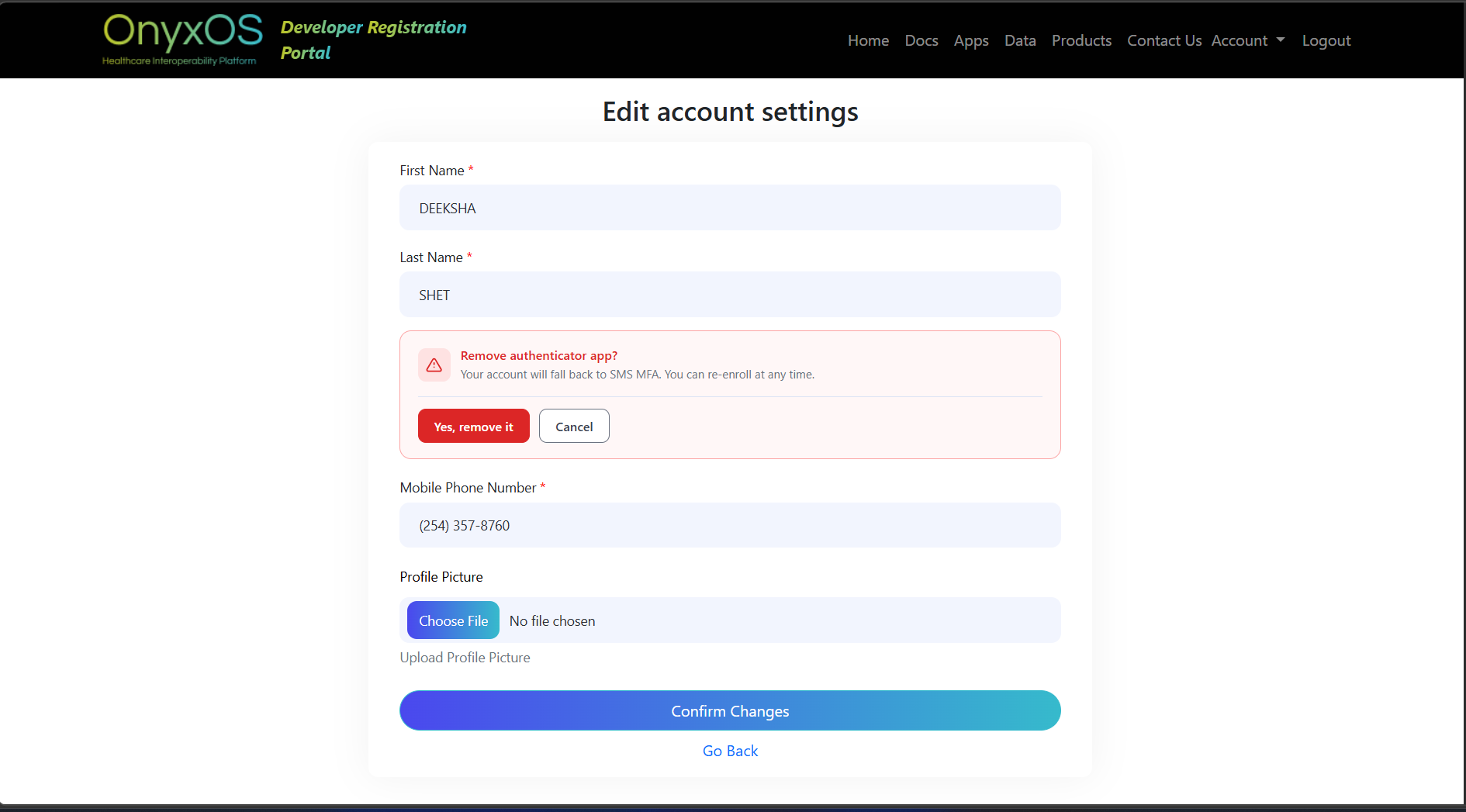
Twilio returns success or 20404 (factor already gone). Both are treated as success and the local TOTPDevice row is deleted. Any other Twilio error returns 503 and the DB record is preserved so the user can retry safely.
Session re-stamped with SMS
The LOGIN_TOTP_VERIFIED flag is cleared and the MFA session is re-stamped with the user's SMS device.
Without this the MFA middleware would see mfa_device=None on the very next request and try to start a new SMS challenge inline - producing a broken "Enter code" page in the middle of the profile save. Re-stamping keeps the user logged in seamlessly.
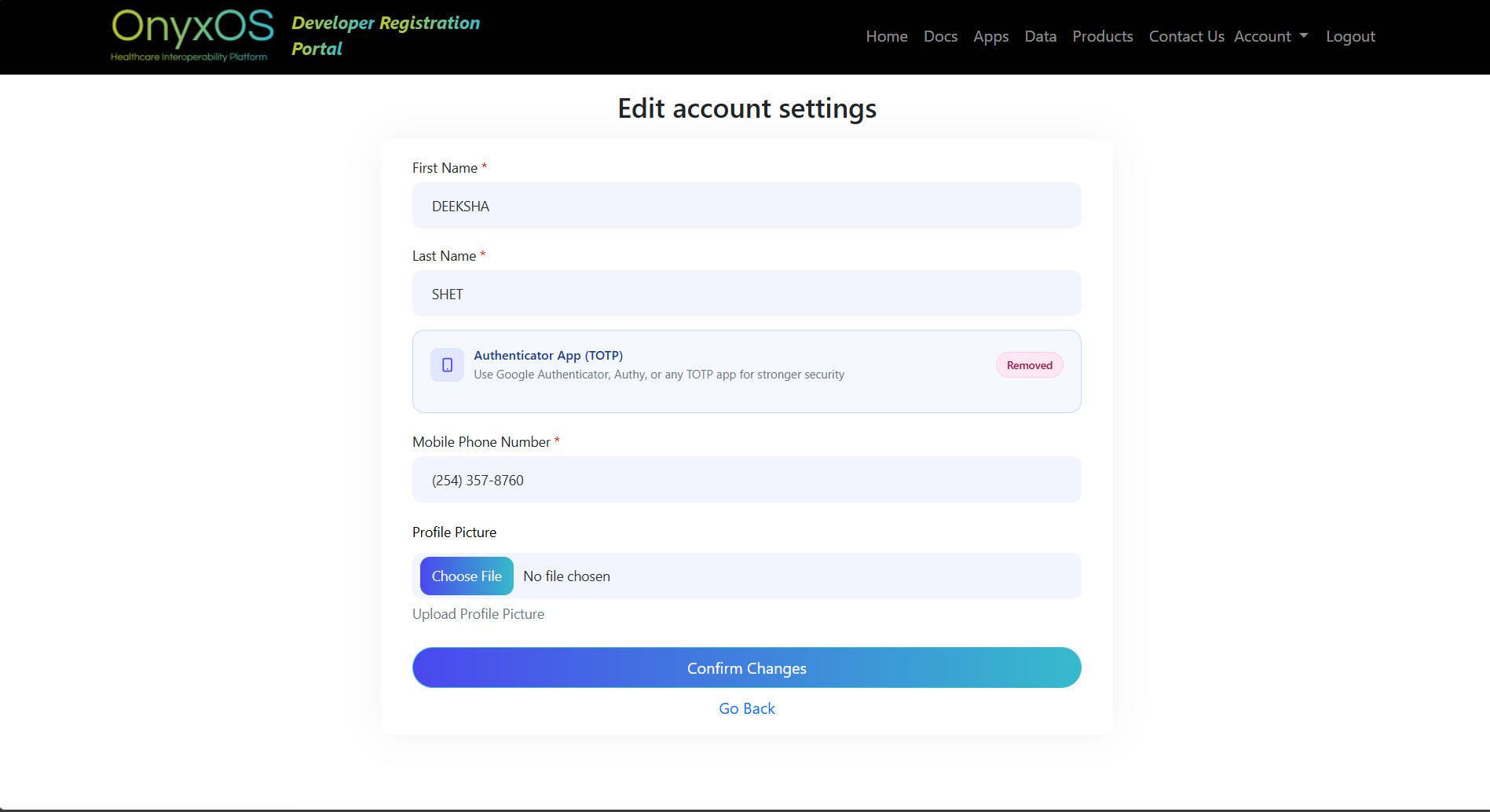
Card flips back to "Not set up"
User can re-enroll later by clicking Enable again.
Done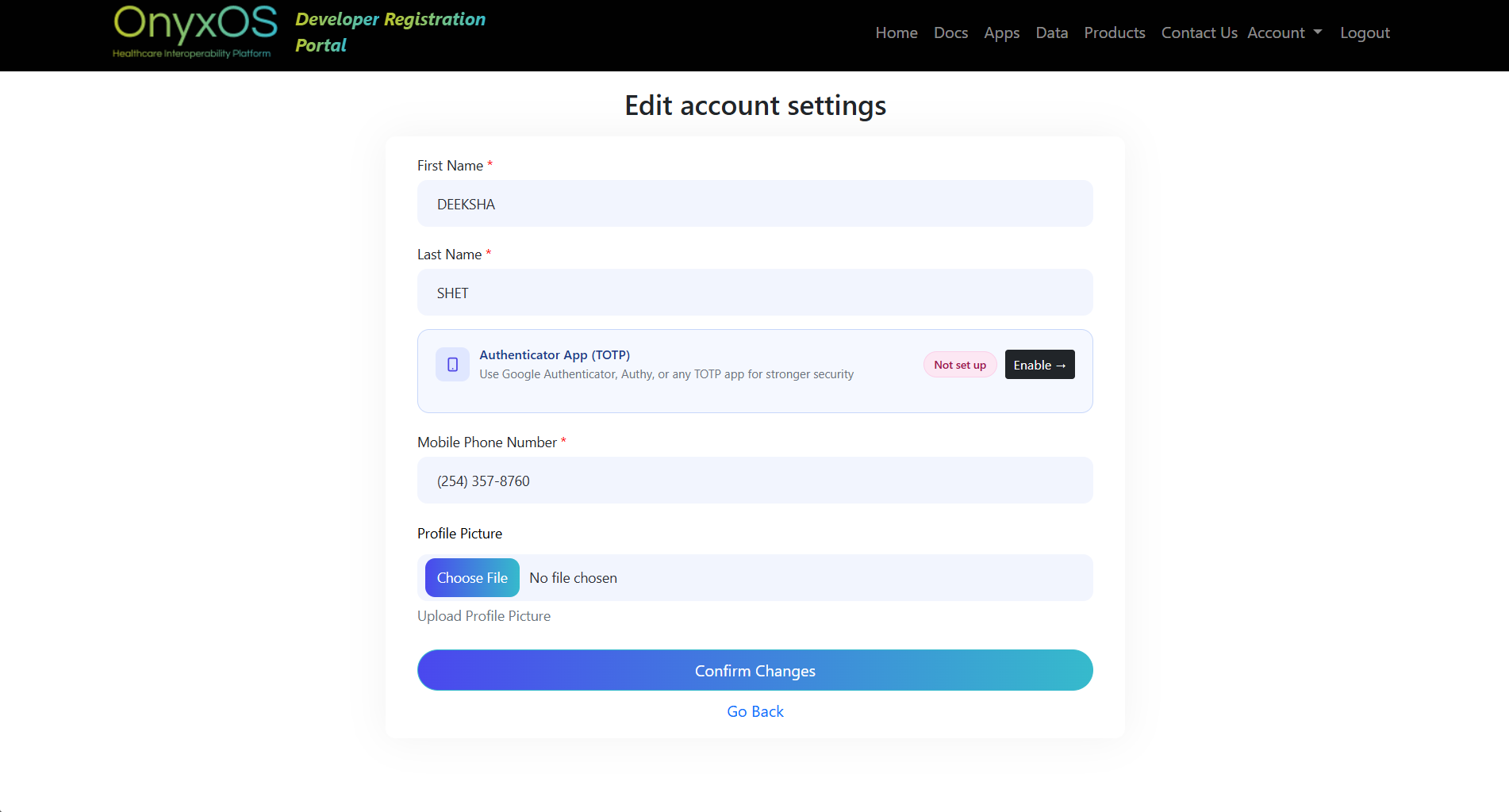
SMS MFA continues to gate the account. The user remains logged in and can choose to re-enroll TOTP at any time.